
More FPS in Windows 11: Safe Gaming Checklist (No Booster Apps)
Set real refresh rate, update drivers, tame overlays and power settings — a reversible checklist before risky registry tweaks.
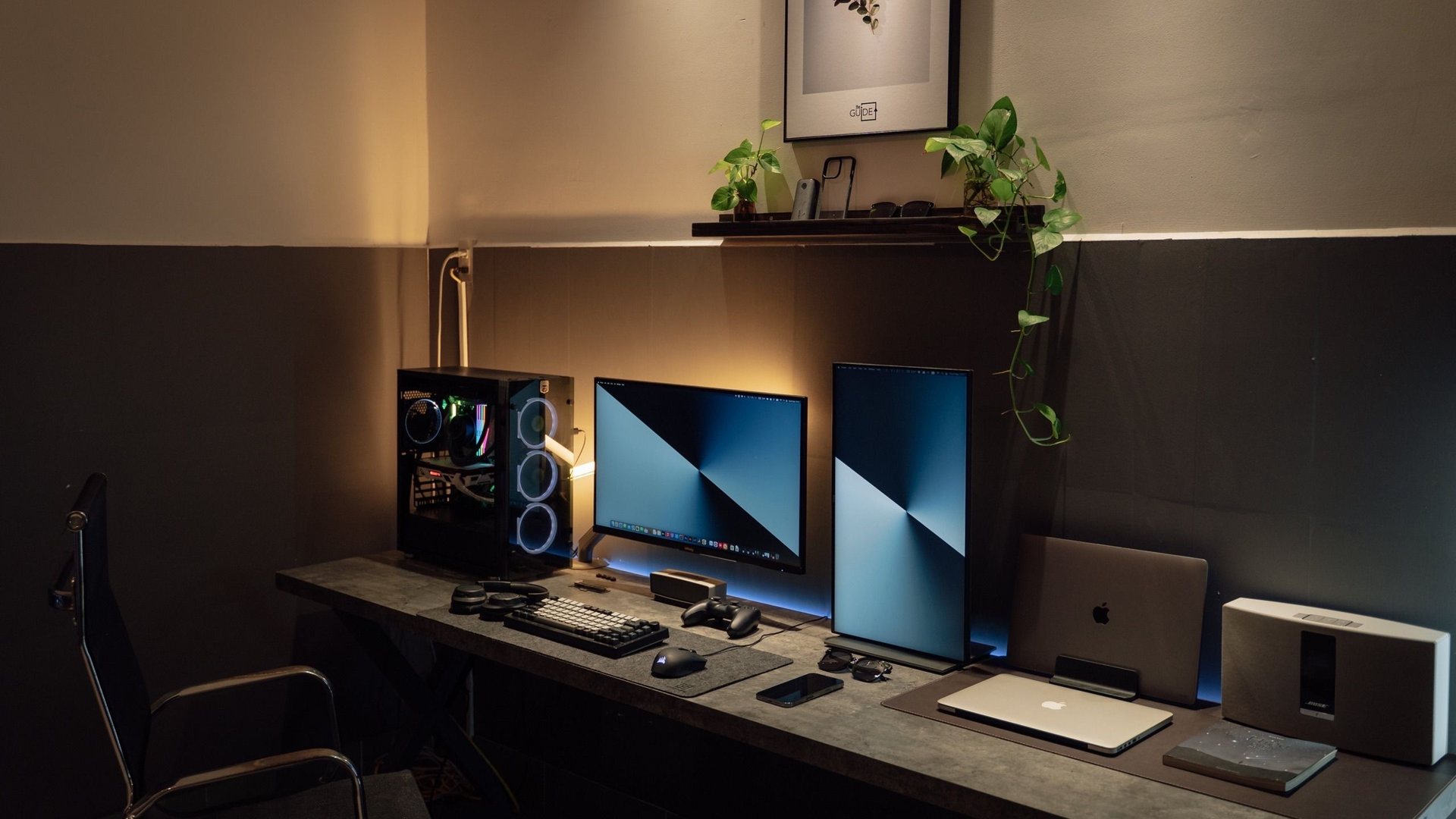 Photo by Minh Phuc on Pexels
To get more FPS in Windows 11, set your monitor to its maximum refresh rate, update GPU drivers, enable Game Mode, enable windowed game optimizations, close overlays and startup apps, use the correct power mode, and tune in-game settings before touching risky Windows tweaks.
Each step is verified against Microsoft Windows gaming documentation and NVIDIA/AMD/Intel driver guidance. When FPS claims are mentioned, they refer to repeatable test scenes measured with CapFrameX or FrameView—not invented benchmark numbers.
I chose the topic, scope and source list, and I am responsible for publishing corrections. Automation and AI can help with research sorting, first-draft structure and repetitive formatting. Facts, prices and claims must still trace back to the sources shown on the page. This is not labelled as a hands-on product review.
Many expensive monitors accidentally run at 60Hz after setup.
Designed to prioritize gaming resources without registry hacks.
Recording, chat, browser tabs and RGB tools can hurt lows.
Start with the boring wins
The biggest Windows 11 gaming mistakes are usually simple: the monitor is at 60Hz, the GPU driver is old, the game is on the wrong graphics preset, or three overlays are recording the same match.
Fix those before using third-party booster apps. Most booster apps promise magic and deliver confusion. A clean checklist is safer and easier to reverse.
| Step | ||
|---|---|---|
| Set refresh rate | Settings > System > Display > Advanced display | Makes the monitor actually use 144Hz, 240Hz or higher. |
| Enable Game Mode | Settings > Gaming > Game Mode | Helps Windows prioritize the game. |
| Update GPU driver | NVIDIA App, AMD Software or Intel tool | New games often need driver profiles. |
| Enable windowed optimizations | Settings > System > Display > Graphics | Improves modern borderless/windowed game presentation. |
| Close overlays | Discord, Steam, GeForce, Xbox, browser | Can improve frame pacing and 1% lows. |
NVIDIA and RTX settings
For RTX cards, keep the driver current and check whether the game supports Reflex, DLSS, DLAA or Frame Generation. Use Reflex in shooters when available. Use DLSS Quality or Balanced when the GPU is the bottleneck. Use Frame Generation for smoothness in visually rich games, but test latency in competitive games.
Hardware-accelerated GPU scheduling can be relevant for modern frame generation features. If you change it, reboot and test one game before changing five other things.
Measure like an adult
Average FPS is not enough. Look at 1% lows, stutter and input feel. A setup that averages 190 FPS but drops hard in fights can feel worse than a setup locked near 160 FPS with stable frame pacing.
Change one thing at a time. Write down the result. If a setting helps only in menus but not during gameplay, it does not count.
- Use the game's benchmark when available.
Performance guide scope
This guide is written for players everywhere. Norway-specific retailer, warranty and price comparison advice belongs in the hardware buying guides, not in FPS, settings or benchmarking pages.
FAQ
Does Game Mode increase FPS?
It can help consistency by prioritizing games, especially on busy systems. It is a safe first toggle, but in-game settings and drivers usually matter more.
Why is my 240Hz monitor only showing 60Hz?
Windows may still be set to 60Hz, the wrong cable may be used, or the monitor input mode may not support the highest refresh rate. Check Windows advanced display settings first.
Are FPS booster apps worth it?
Usually no. They often change settings you can control yourself and make troubleshooting harder. Use official Windows, GPU and game settings first.
Sources and methodology
I use official documentation, public hardware data and repeatable benchmark methods. Treat the settings as a starting point and measure your own PC before changing several variables at once.