
Best Battlefield Settings by GPU Tier: RTX, Radeon and Intel Arc
Recommended Battlefield graphics, display, upscaling and latency settings for RTX 3060/4060, Radeon, Intel Arc and premium GPU players.
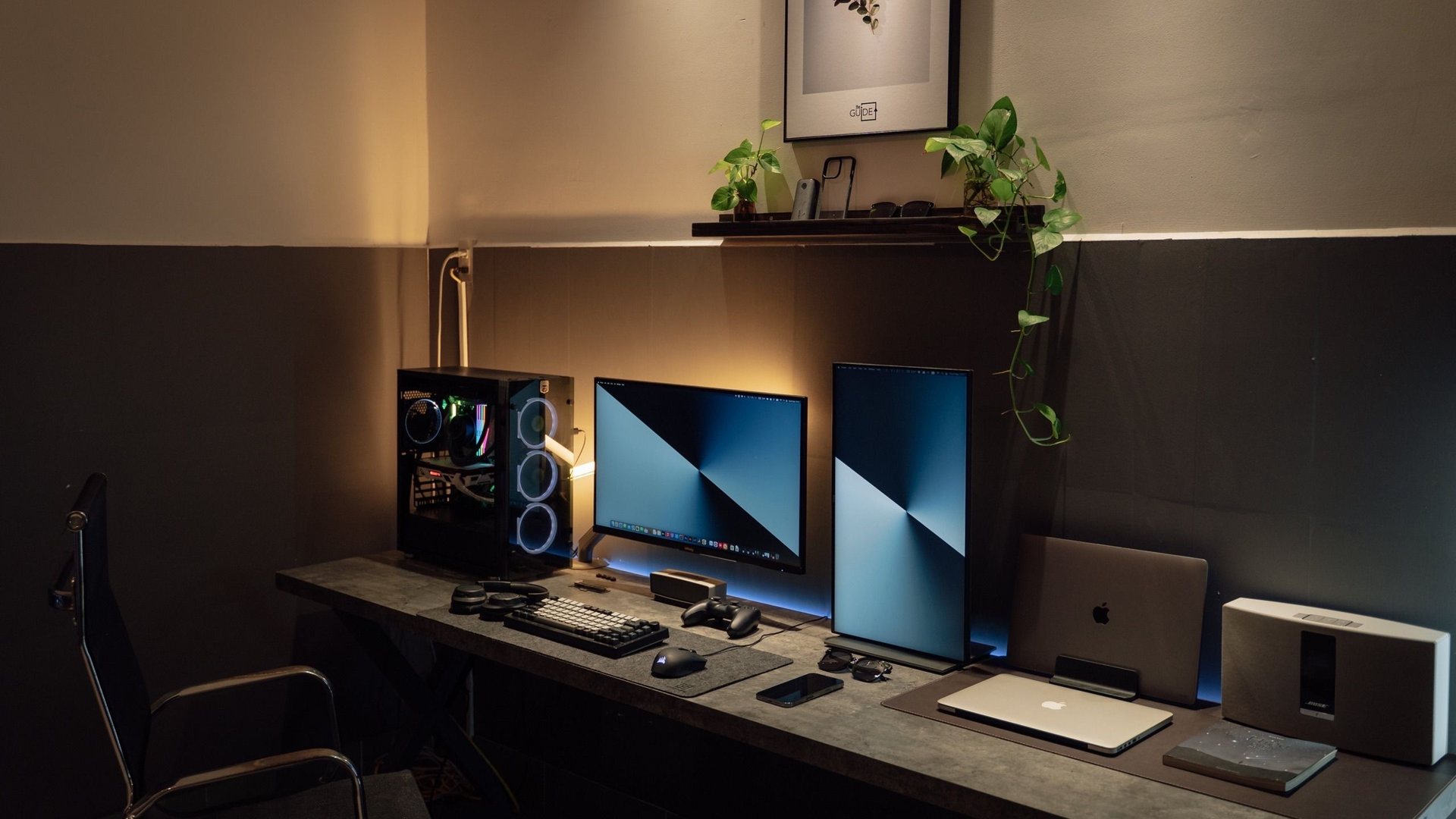 Photo by Minh Phuc on Pexels
Use native refresh rate, fullscreen or optimized borderless, motion blur off, film grain off, effects medium, post-processing low and textures based on VRAM. RTX players should test DLSS and Reflex where supported, Radeon players should test FSR where it looks clean, and Intel Arc players should test XeSS in supported games. Avoid frame generation for serious multiplayer unless input feel still passes your own aim test.
I chose the topic, scope and source list, and I am responsible for publishing corrections. Automation and AI can help with research sorting, first-draft structure and repetitive formatting. Facts, prices and claims must still trace back to the sources shown on the page. This is not labelled as a hands-on product review.
RTX 3060/4060-class and similar cards should protect 1% lows before chasing ultra.
Keep clarity high and reduce distracting post effects.
Best starting point for multiplayer aiming, regardless of GPU brand.
RTX 5080-class cards can push 4K and high settings, but explosions can still punish frame pacing.
Start with your GPU tier
Battlefield-style games are chaotic: smoke, vehicles, destruction, foliage, reflections and explosions all compete for frames and visibility. That is why the best preset is not one universal RTX 5080 list.
Start by matching the preset to the card class, then tune the scene that actually hurts: a busy multiplayer map with explosions, not an empty spawn area.
| GPU class | Examples | Target | Starting point |
|---|---|---|---|
| Budget / older | GTX 1650, GTX 1660, RTX 2060, RX 6600 | 1080p low/medium | Textures medium, effects low/medium, blur off. |
| Mainstream | RTX 3060, RTX 3050, RTX 4060, RTX 4060 Laptop | 1080p high or 1440p tuned | Textures high if VRAM allows, effects medium, upscaling if lows drop. |
| Modern value | RTX 5060 / 5070, RX 9060 XT, Arc B580 | 1440p high | Quality upscaling only if it stays clean; reduce post-processing first. |
| Upper / premium | RTX 4070-class, RTX 5080, RX 9070 XT | 1440p high refresh or 4K | High textures, measured ray tracing, Quality upscaling at 4K if needed. |
Copy these settings first
| Setting | Recommended start | Reason |
|---|---|---|
| Display mode | Fullscreen or optimized borderless | Use the mode that gives stable frame pacing on your system. |
| Refresh rate | Monitor maximum | A 240Hz monitor should actually run at 240Hz in Windows and in game. |
| V-Sync | Off in game | Use VRR/G-Sync at the driver and monitor level if available. |
| Low latency tech | Reflex / Anti-Lag / game low-latency mode where supported | Reduces queue latency when the feature exists for your GPU and game. |
| Upscaling | DLSS / FSR / XeSS Quality first | Recover FPS without throwing away too much clarity. |
| Motion blur | Off | Improves visibility during fast turns. |
| Film grain / chromatic aberration | Off | Cleaner enemy spotting and less noise. |
| Textures | Match VRAM | 8 GB cards may need restraint; higher VRAM cards can usually push textures harder. |
| Effects | Medium | Big battles can punish FPS without adding useful clarity. |
| Post processing | Low | Usually one of the easiest visibility wins. |
Frame Generation in multiplayer
Frame generation can make motion look much smoother, but it does not make your mouse input update at the same rate as true rendered frames. For casual large-scale play, it can feel excellent. For serious aim duels, test it carefully and be ready to turn it off.
Low latency features matter because they tackle input feel directly. If the game supports your GPU's latency feature, test it before chasing tiny graphics tweaks.
Visibility beats ultra
Battlefield-style maps are noisy: smoke, debris, reflections, foliage, explosions and UI all fight for attention. That is why a smart preset is not simply Ultra everything. Keep clarity and mesh quality high, then trim effects, motion blur and heavy post processing.
After changing settings, play one chaotic map for ten minutes and watch 1% lows, not only average FPS. Smooth lows feel better than a flashy average that collapses in explosions.
- Set FOV between 90 and 105, then adjust for your monitor size.
Performance guide scope
This guide is written for players everywhere. Norway-specific retailer, warranty and price comparison advice belongs in the hardware buying guides, not in FPS, settings or benchmarking pages.
FAQ
Should I use DLSS, FSR or XeSS Quality or Balanced in Battlefield?
Start with Quality. Switch to Balanced only if your 1% lows are below your monitor target. At 1440p, native or Quality modes are usually better-looking than aggressive upscaling.
Should Frame Generation be on for Battlefield multiplayer?
For casual play, maybe. For competitive aiming, start with Frame Generation off and Reflex on, then test whether the smoother motion is worth the input feel.
Why not use Ultra on a premium GPU?
You can, but Battlefield matches are easier to read when unnecessary effects and post-processing are reduced. The goal is stable high FPS and visibility.
Sources and methodology
I use official documentation, public hardware data and repeatable benchmark methods. Treat the settings as a starting point and measure your own PC before changing several variables at once.