
Best CS2 Settings for PC (August 2026): Competitive Presets by GPU
Counter-Strike 2 video settings for clarity and stable frame pacing: shadows, effects, FPS caps and GPU-tier starting points you can apply before the next patch.
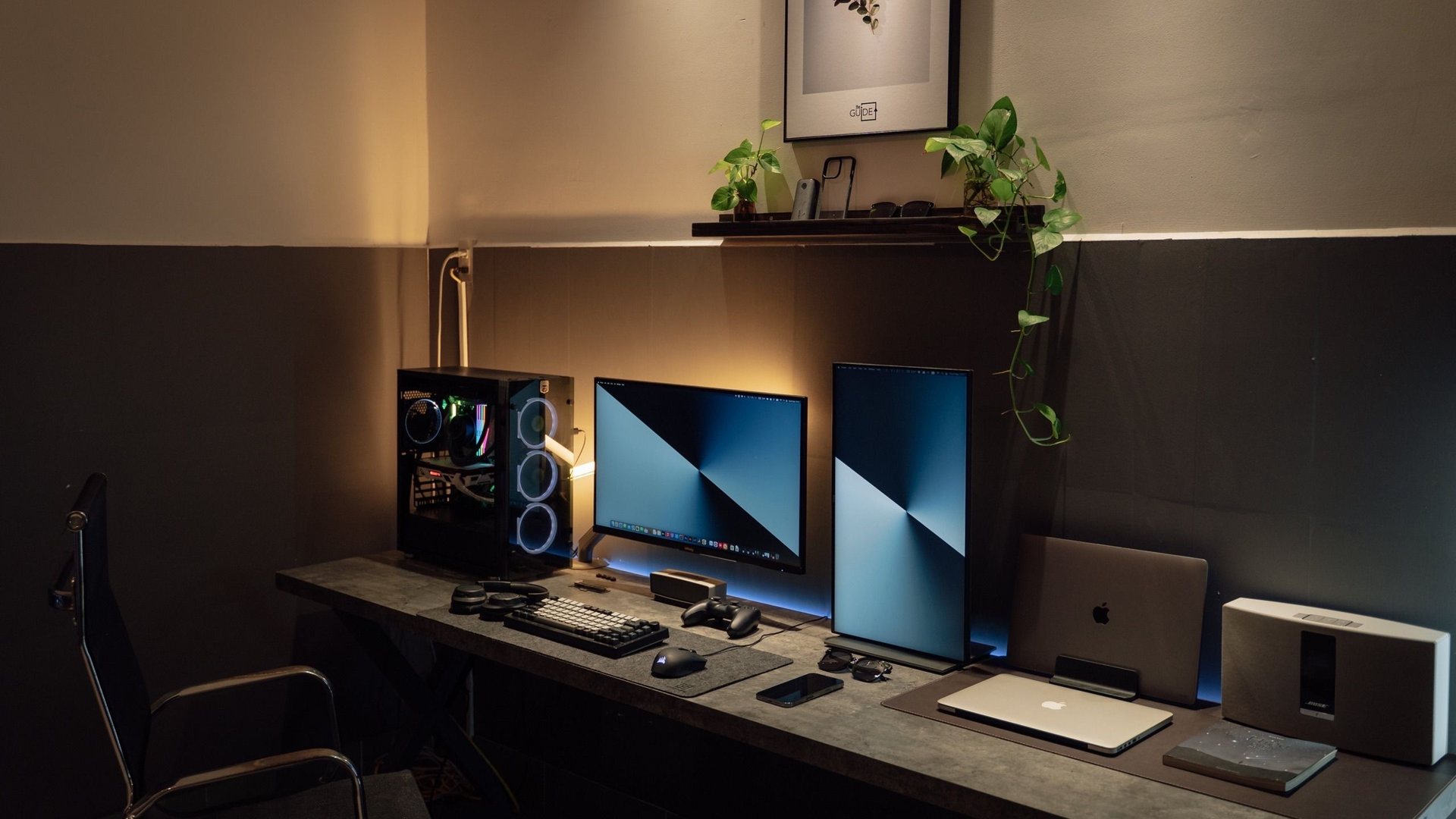 Photo by Minh Phuc on Pexels
Start CS2 with fullscreen, V-Sync off, low shadows, reduced effects, sensible texture quality for your VRAM, and an FPS cap your CPU can hold in deathmatch. Test one busy map after each change and watch 1% lows, not only average FPS.
GPU-tier presets are starting points only, last reviewed 2026-08-25. Re-test after Counter-Strike 2 patches or driver updates using the same deathmatch route and official Steam patch notes.
I chose the topic, scope and source list, and I am responsible for publishing corrections. Automation and AI can help with research sorting, first-draft structure and repetitive formatting. Facts, prices and claims must still trace back to the sources shown on the page. This is not labelled as a hands-on product review.
Clarity in smokes and utility matters more than decorative lighting.
Use the same server and scenario when comparing presets.
Pair in-game settings with Windows refresh rate and mouse checks.
Settings to change first
CS2 is sensitive to CPU spikes and frame pacing during utility and multi-kill moments. Lower shadows, effects and post-processing before you drop resolution.
If FPS swings wildly, add a stable cap slightly below your peak instead of chasing an unstable maximum.
| Setting | ||
|---|---|---|
| Display mode | Fullscreen | Fewer focus and scaling surprises. |
| V-Sync | Off | Avoid extra render latency in ranked play. |
| Shadow quality | Low | Big clarity win in busy angles. |
| Effect detail | Low | Helps CPU-heavy fights stay smoother. |
| Texture quality | Match VRAM | Too high can cause hitching on 8 GB cards. |
| FPS cap | Stable value below peak | Smoother feel beats a bouncing counter. |
GPU tier starting points
These are starting presets only. After a driver or patch, replay the same deathmatch and confirm 1% lows feel consistent.
| Hardware | ||
|---|---|---|
| GTX 1650 / RTX 3050 laptop | 1080p low/medium | Cap FPS if CPU spikes in smokes. |
| RTX 3060 / RTX 4060 | 1080p high refresh | Strong lane for 144–240 Hz with tuned settings. |
| RTX 5070 / RX 9070 class | 1440p or 1080p ultra refresh | Still keep effects sane for utility fights. |
| RTX 5080 class | 1440p high refresh or 4K test | Measure 1% lows in chaotic retakes. |
After a CS2 patch
Valve can change rendering behaviour between updates. When a new Counter-Strike 2 patch ships, replay the same deathmatch route and compare 1% lows before assuming your old preset still fits.
Official patch notes live on the Steam news feed for Counter-Strike 2. If a setting behaves differently after an update, reset one group at a time instead of wiping the whole profile.
Benchmark habit
Use CapFrameX or the in-game FPS counter on a fixed deathmatch route. Save one screenshot of working settings after patches so you can revert quickly.
For monitor, mouse and Windows latency checks, read the CS2 and Valorant low-latency setup guide next.
- Change one setting group at a time.
Gaming guide scope
This guide is written for players everywhere. Norway-specific retailer, warranty and price comparison advice belongs in the hardware buying guides, not in game tutorials.
FAQ
Should I cap FPS in CS2?
Yes, if your frame rate swings hard. A stable cap slightly below your peak often feels cleaner than an uncapped number that constantly drops.
Is CS2 more CPU or GPU heavy?
Both matter, but busy fights and smokes often expose CPU and frame pacing limits before raw GPU power.
Where do I fix Windows and mouse latency?
Use the CS2 and Valorant low-latency setup guide for refresh rate, mouse and system checks beyond in-game video options.
Sources and methodology
I use official game documentation and patch notes first, then clearly identified community tools when they add something useful. This is source-backed guidance, not a claim that I personally tested every weapon, map or patch.