CS2 and Valorant Low Latency Setup: FPS, Monitor, Mouse and Windows Checks
A practical competitive shooter setup guide for CS2 and Valorant: Windows, monitor refresh, mouse feel, FPS caps, visibility and benchmark habits.
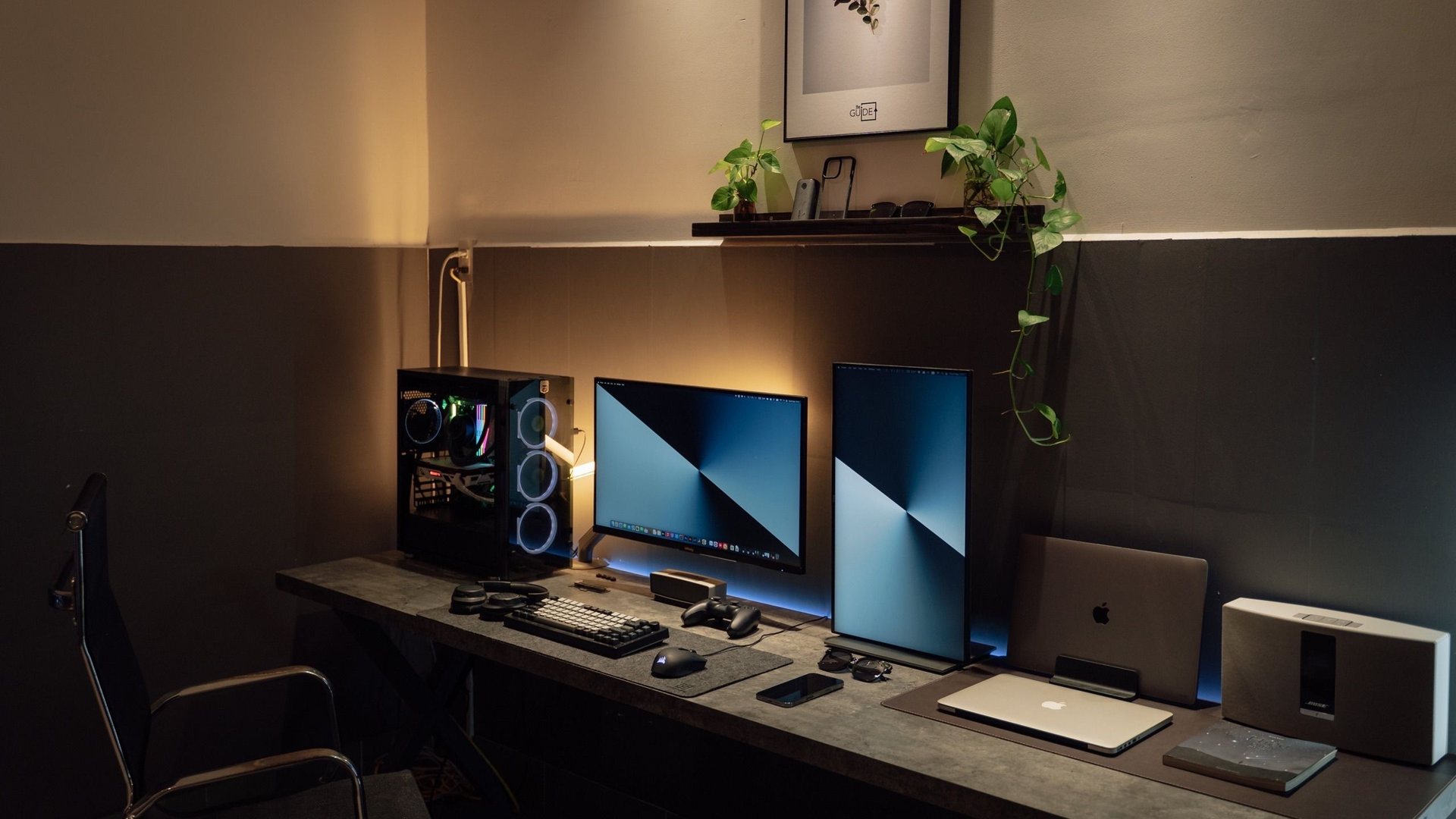 Photo by Minh Phuc on Pexels
For CS2 and Valorant, set your monitor to its real refresh rate, use stable FPS settings, keep V-Sync off for competitive play, reduce visual clutter, use a comfortable sensitivity, and measure frame pacing before buying new hardware. A clean 240Hz setup with stable 1% lows beats a messy ultra preset.
Many players forget Windows is still set to 60Hz or use settings their PC cannot hold.
If your FPS is already stable, feel upgrades often come from display, mouse and desk setup.
Use the same scenario when comparing settings so your result is not random.
What people search for
Competitive shooter players want their aim to feel consistent before buying a new GPU, monitor or mouse.
The low latency stack
Low latency is not one setting. It is a stack: monitor refresh, stable FPS, render latency, mouse input, network stability, clean visibility and a player who can trust the same feel every round.
Start with the basics before buying. Confirm refresh rate in Windows, turn off distracting effects, use a stable FPS cap if needed and close background software that spikes CPU or GPU usage.
| Layer | ||
|---|---|---|
| Monitor | Windows and game refresh rate | 144Hz/240Hz/360Hz is actually active. |
| Frame pacing | 1% lows and stutter | Aiming feels the same in busy fights. |
| Mouse | DPI, polling, pad space | No skipping, no cramped desk, no random acceleration feel. |
| Windows | Game Mode, overlays, startup apps | No background spikes during matches. |
| Network | Ping, packet loss, Wi-Fi quality | No rubberbanding blamed on FPS. |
CS2 versus Valorant
CS2 can be more demanding on CPU and frame pacing in busy situations, while Valorant is designed to run well on a wide range of PCs. That means a Valorant-stable setup may still need extra testing in CS2.
Use similar principles in both: clarity first, shadows and distracting effects low, resolution chosen for comfort, and a sensitivity you can repeat instead of chasing a pro player's exact numbers.
- Do not change sensitivity and video settings on the same day if aim feels bad.
Upgrade order for competitive players
The best upgrade order depends on your bottleneck. If you are still at 60Hz, a high-refresh monitor changes everything. If you already have 240Hz but poor frame pacing, the CPU/GPU/settings balance matters more. If aim feels cramped, a lighter mouse or bigger pad can matter more than another graphics preset.
For content growth, this topic should become a small series: best 240Hz monitor for shooters, mouse shape guide, CS2 FPS guide by CPU/GPU tier and Valorant laptop settings.
Gaming guide scope
This guide is written for players everywhere. Norway-specific retailer, warranty and price comparison advice belongs in the hardware buying guides, not in game tutorials.
FAQ
Is 240Hz worth it for CS2 and Valorant?
Yes, if your PC can hold stable frames and you play enough competitive shooters to notice the feel. A stable 144Hz setup is still better than a bad 240Hz setup with constant drops.
Should V-Sync be on?
For competitive shooters, V-Sync is usually off because it can add latency. Use frame caps, Reflex or in-game latency tools where supported instead.
What should I upgrade first for better aim?
Check monitor refresh, frame pacing, mouse comfort, pad space and sensitivity consistency before buying a new GPU.
Sources and methodology
Game guides combine official game sources, creator documentation, public hardware trend data and practical settings methodology. Hardware buying details are kept separate unless the game itself creates a clear PC requirement.