
Best GTA V PC Settings: Stable FPS Without Flattening Los Santos
A practical GTA V graphics guide covering textures, distance, population, shadows, grass and a repeatable benchmark route for modern PCs.
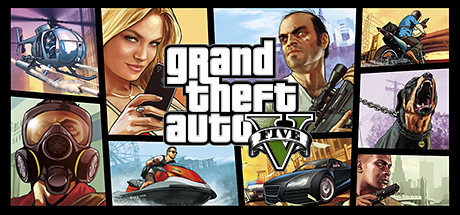 Official Grand Theft Auto V store artwork by Rockstar Games via Steam
Keep GTA V textures as high as VRAM allows, then tune population, distance, grass and shadows for the frame rate you can hold in busy city driving. Avoid maxing every advanced distance option before testing. Use the same daytime drive through dense traffic after each change so a quiet desert scene does not mislead you.
Official Rockstar and Steam pages establish editions, features and requirements. Settings recommendations are an editorial test order and deliberately avoid universal FPS claims.
I chose the topic, scope and source list, and I am responsible for publishing corrections. Automation and AI can help with research sorting, first-draft structure and repetitive formatting. Facts, prices and claims must still trace back to the sources shown on the page. This is not labelled as a hands-on product review.
Reduce expensive effects before making the whole city muddy.
Busy streets can expose CPU and streaming limits.
One repeatable route reveals more than a quiet viewpoint.
Tune by the bottleneck
| Setting group | Main pressure | Practical starting point |
|---|---|---|
| Textures | VRAM | Keep high if the VRAM meter and real play remain stable |
| Population and variety | CPU and streaming | Reduce when dense traffic causes the worst drops |
| Distance scaling | CPU, GPU and streaming | Use a moderate value before advanced distance options |
| Grass and shadows | GPU | Lower one step for large gains in foliage-heavy areas |
| MSAA and high-cost effects | GPU | Use sparingly at 1440p or 4K |
| Advanced graphics | Mixed | Leave conservative until the main menu is stable |
A benchmark route that catches real drops
Use the built-in benchmark as a first comparison, then test the game you actually play. Drive the same route through dense traffic, turn the camera quickly, cross a foliage-heavy area and finish with a fast transition into a new district.
Record average FPS only together with the lowest moments and visible stutter. A preset that averages well but hitches during high-speed travel is not finished.
- Keep time of day and weather similar when comparing.
- Restart after major texture or renderer changes if the game requests it.
- Do not mix GTA Online server load with a clean single-player graphics test.
- Confirm whether you are using the Legacy or newer PC edition before copying settings.
What to keep attractive
GTA V gains much of its atmosphere from draw distance, lighting and city density. Reduce the setting that causes the bottleneck rather than switching every control to low.
For a midrange GPU, high textures with moderate shadows, grass and distance usually looks more coherent than a mixture of ultra effects and visibly reduced texture quality.
Gaming guide scope
This guide is written for players everywhere. Norway-specific retailer, warranty and price comparison advice belongs in the hardware buying guides, not in game tutorials.
FAQ
Which GTA V setting should I lower first?
Start with the setting tied to the bad scene: population for city CPU drops, grass for countryside GPU drops, and MSAA or shadows for broad GPU pressure.
Why does GTA V stutter while driving fast?
Fast travel stresses asset streaming, CPU work and storage. Test from an SSD, reduce excessive distance settings and close heavy background tasks before changing everything.
Are GTA V and FiveM settings identical?
FiveM uses GTA V rendering, but server resources and scripts can add CPU or memory pressure. Establish a clean GTA V baseline before judging a specific server.
Sources and methodology
I use official game documentation and patch notes first, then clearly identified community tools when they add something useful. This is source-backed guidance, not a claim that I personally tested every weapon, map or patch.