
Best PEAK PC Settings: Smoother Climbing and Fewer Frame-Time Spikes
A PEAK PC settings and troubleshooting guide for stable frame pacing, readable routes and sensible changes on mainstream gaming PCs.
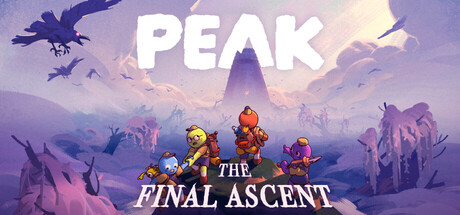 Official PEAK store artwork by Landcrab via Steam
For PEAK, prioritize stable frame time over maximum image quality. Use fullscreen, confirm the correct resolution and refresh rate, lower shadows and expensive effects one step at a time, and cap FPS only when it improves consistency. Test on a busy climb, not while standing at the start.
System requirements are quoted from the official Steam listing. The settings order is a conservative troubleshooting workflow, not a benchmark claim for a particular GPU.
I chose the topic, scope and source list, and I am responsible for publishing corrections. Automation and AI can help with research sorting, first-draft structure and repetitive formatting. Facts, prices and claims must still trace back to the sources shown on the page. This is not labelled as a hands-on product review.
Fix the display path before reducing the image.
Move expensive settings gradually and preserve route clarity.
The minimum FPS and feel matter more than a menu peak.
A safe tuning order
| Step | Change | Reason |
|---|---|---|
| 1 | Confirm native resolution and Windows refresh rate | Prevents a display setup mistake from looking like game performance |
| 2 | Use fullscreen and remove unnecessary overlays | Creates a cleaner test and reduces background interference |
| 3 | Lower shadows and heavy effects one level | Often saves GPU time while preserving route readability |
| 4 | Reduce resolution scale only if still GPU-limited | This is a visible tradeoff, so use it after targeted settings |
| 5 | Try a stable FPS cap | A lower consistent rate can feel better than repeated spikes |
Test where performance actually matters
Run the same demanding section for at least a minute and watch consistency rather than the highest FPS number. A quiet opening area can hide the drops that appear around effects, several players or a complex view.
Change one setting group at a time. If several controls move together, you will not know which one improved the frame time or damaged visibility.
- Close recording, browser and RGB utilities only for the comparison, then restore what you normally use.
- Separate network problems from rendering problems: voice or player warping is not fixed by lowering shadows.
- Update the GPU driver when a current release specifically addresses the game or you are troubleshooting a known issue.
- Verify game files before reinstalling Windows or using aggressive cleanup tools.
Official minimum is a starting line
Steam lists Windows 10, 8 GB RAM, DirectX 12 and a GTX 1060 or RX 6600 XT-class GPU as the minimum, with 4 GB storage. Minimum requirements describe the supported floor, not a promise of a specific resolution, preset or frame rate.
If the PC is close to that floor, begin with a modest resolution and preset, then raise visual quality only after the climb remains stable.
Gaming guide scope
This guide is written for players everywhere. Norway-specific retailer, warranty and price comparison advice belongs in the hardware buying guides, not in game tutorials.
FAQ
What GPU does PEAK require?
Steam currently lists a GTX 1060 or RX 6600 XT-class GPU as the minimum. Check the live store page because requirements can change.
Should I cap FPS in PEAK?
Try it when frame time swings heavily. A cap below the unstable peak can improve consistency, but compare the same scene before keeping it.
Why does PEAK lag only with friends?
First distinguish frame-rate drops from network symptoms. Lower graphics for rendering drops; troubleshoot connection, server or voice issues separately.
Sources and methodology
I use official game documentation and patch notes first, then clearly identified community tools when they add something useful. This is source-backed guidance, not a claim that I personally tested every weapon, map or patch.