
How to connect an MCP server in Codex
Add the public OpenAI documentation MCP to Codex, check the configured server and verify a source-backed tool call before connecting private accounts.
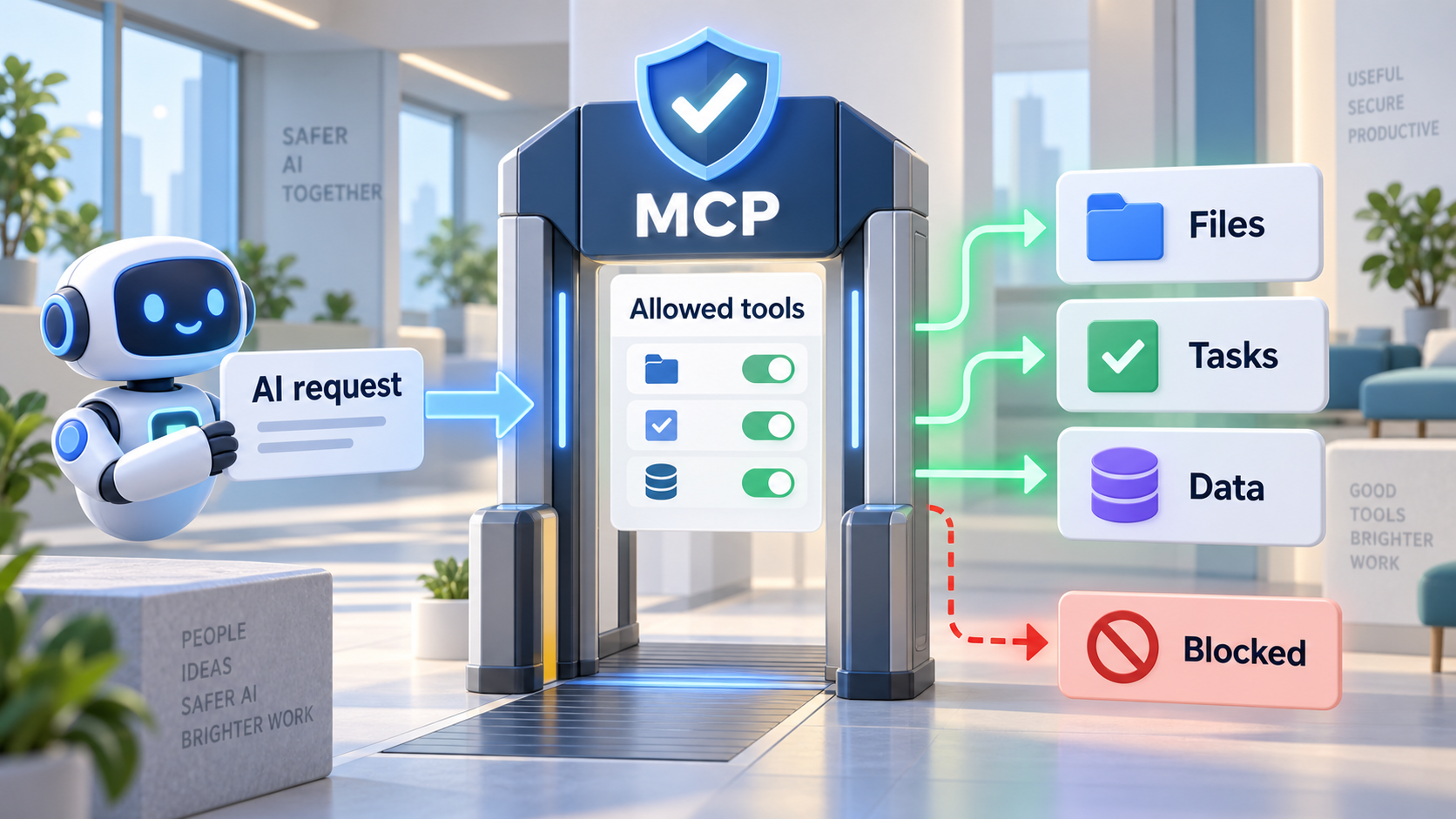 Original NordPeek editorial illustration; conceptual example, not a product screenshot
Run codex mcp add openaiDeveloperDocs --url https://developers.openai.com/mcp, then codex mcp list. Start a session and request a documentation lookup. Verify the tool invocation and returned source URL.
OpenAI Codex MCP documentation checked on 2026-09-12. Commands are copied from publisher docs; run them in a test project and compare stdout to the linked pages.
I chose the topic, scope and source list, and I am responsible for publishing corrections. Automation and AI can help with research sorting, first-draft structure and repetitive formatting. Facts, prices and claims must still trace back to the sources shown on the page. This is not labelled as a hands-on product review.
Before you start
Have the Codex CLI installed and signed in. Open a terminal in a disposable project and confirm the codex command is available. This example adds a public documentation endpoint; it does not install a local server package.
1. Add the documentation server
Run these commands separately in your terminal.
codex mcp add openaiDeveloperDocs --url https://developers.openai.com/mcp
codex mcp list
2. Check the configuration
User settings live in ~/.codex/config.toml (on Windows, .codex/config.toml inside your user folder). The entry below is an alternative to the add command. Preserve existing settings.
[mcp_servers.openaiDeveloperDocs]
url = "https://developers.openai.com/mcp"
3. Run a reading task
Start a fresh Codex session after configuration. Inspect the tool activity when running the following prompt; a listing alone is not a connection test.
Use OpenAI Docs MCP to find the documentation for MCP configuration. Give me the official URL and explain where the configuration is stored. Do not edit this project.4. Check and disconnect
Compare the response to the linked documentation. If no tool ran, inspect MCP status and errors before accepting the answer. To remove this setup, delete only its server entry from config.toml. Removing a private integration also requires checking and revoking its provider-side authorisation.
When an account login is needed
For an OAuth-capable service, use codex mcp login followed by its configured server name. Follow that provider's scopes and organisation requirements. Do not place a token in a prompt or commit it to a repository.
AI guide scope
These guides link to official vendor pages and explain tradeoffs without inventing prices, benchmarks or availability. Check each product's current plan page before purchase or enabling computer-use permissions.
FAQ
Does this guide require a paid account?
The exercise uses synthetic data. The chosen AI client or connected service may require a plan or administrator approval; check the linked provider documentation before subscribing.
Sources and methodology
I link to official product pages and explain workflow tradeoffs without inventing prices, benchmark scores or rollout dates. Verify plan limits, permissions and regional availability on each vendor site before enabling agents or computer use.