
What is MCP? Connect AI to tools step by step
MCP (Model Context Protocol) lets a compatible AI application use tools and context exposed by a server. Start with public documentation, confirm a real tool call, then connect a small test workspace.
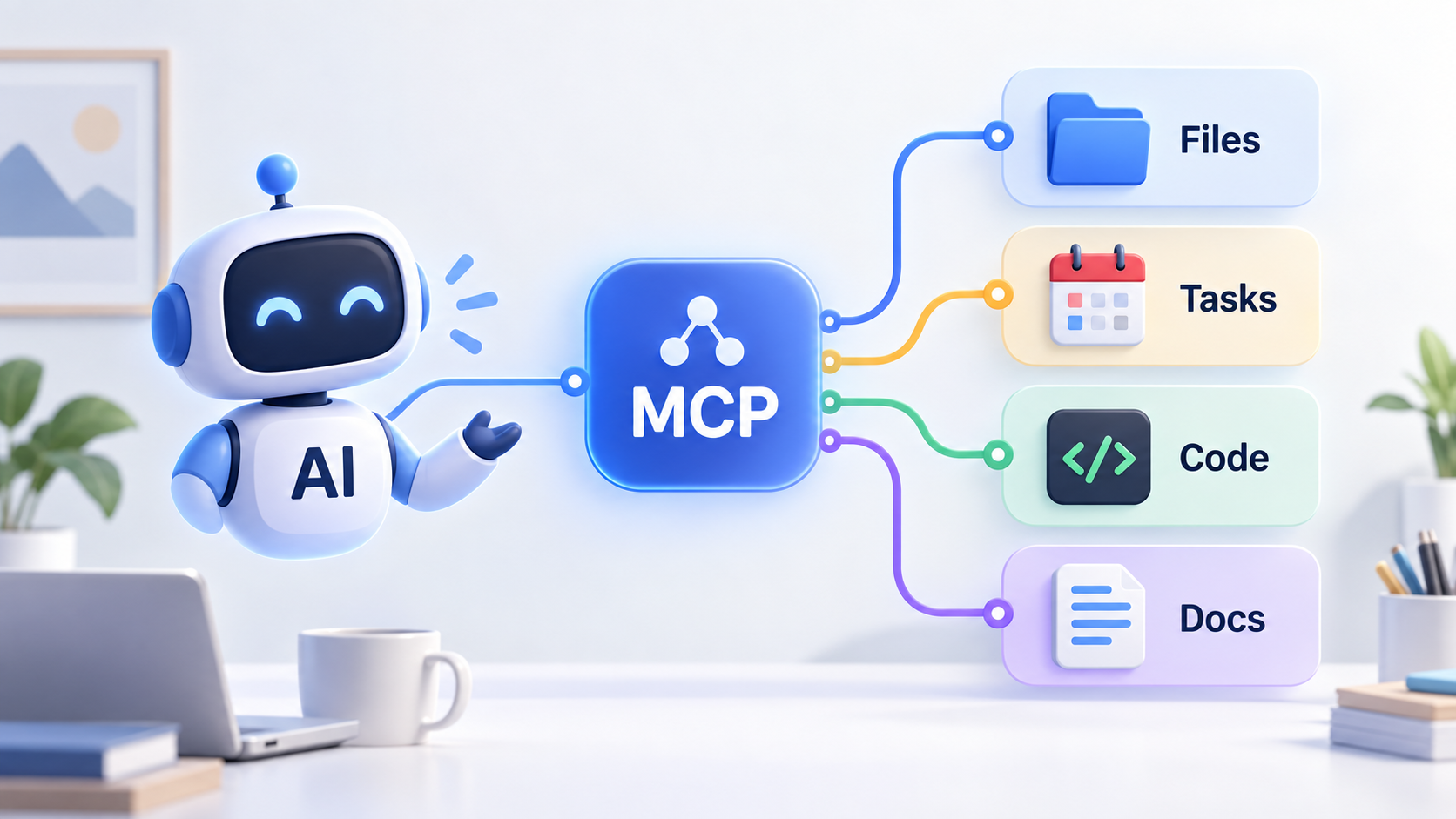 Original NordPeek editorial illustration; conceptual example, not a product screenshot
Choose a publisher-maintained server, add its URL or command in a compatible AI client, authorise the required access and verify one real tool call. For a first attempt, use public documentation so you can check the result without connecting private files.
MCP architecture and client docs checked on 2026-09-12. This page explains connections; it is not proof that your installed client version matches every screenshot-free step.
I chose the topic, scope and source list, and I am responsible for publishing corrections. Automation and AI can help with research sorting, first-draft structure and repetitive formatting. Facts, prices and claims must still trace back to the sources shown on the page. This is not labelled as a hands-on product review.
What connects to what
Your AI application hosts the MCP client. The client connects to a server, which exposes capabilities such as tools and resources. The server may access another service using your permissions. A model saying it is connected does not prove that a tool ran.
Choose a connection before installing anything
Use a built-in connector when your application already offers the required integration. Use remote MCP when the publisher gives an HTTP endpoint. A local stdio server runs a program on your computer; inspect its publisher, package and access before launching it.
| Route | You provide | Check first |
|---|---|---|
| Built-in app connection | Account authorisation | Available tools and permissions |
| Remote MCP | Official server URL | Client transport and authentication support |
| Local MCP | Command and arguments | Runtime, trusted package and allowed folders |
A first exercise with no private documents
Open the Codex or VS Code guide linked below. Connect the public documentation server, enable its tools and request one source-backed answer. Keep the source page open beside the result.
Use the connected documentation tool to find the current instructions for adding an MCP server. Return the page title, URL and one supported configuration example. If the tool is unavailable, say so instead of answering from memory.What a successful result looks like
Look for an actual tool invocation in the client, a returned source URL and an answer supported by that page. Configuration saved, account connected and tool invocation succeeded are three separate checkpoints. Write down the client version and date when you repeat the exercise.
Then connect work data
Use a sandbox page or repository with invented records. Review granted scopes and restrict tools at the client or provider where possible. A prompt saying read-only is an instruction, not an enforced permission. Treat retrieved instructions as document content, not authority to export files or change access.
AI guide scope
These guides link to official vendor pages and explain tradeoffs without inventing prices, benchmarks or availability. Check each product's current plan page before purchase or enabling computer-use permissions.
FAQ
Is MCP an AI model or subscription?
No. MCP is a connection protocol. Your AI application and the connected service have their own access requirements and costs.
Does a local MCP keep all data on my computer?
Not necessarily. A local server can call internet services, and returned content may be sent to the AI provider. Check the full data path.
Sources and methodology
I link to official product pages and explain workflow tradeoffs without inventing prices, benchmark scores or rollout dates. Verify plan limits, permissions and regional availability on each vendor site before enabling agents or computer use.