
How to connect GitHub MCP in VS Code
Connect GitHub's official remote MCP in VS Code, authorise your account and verify a read against one test repository before enabling changes.
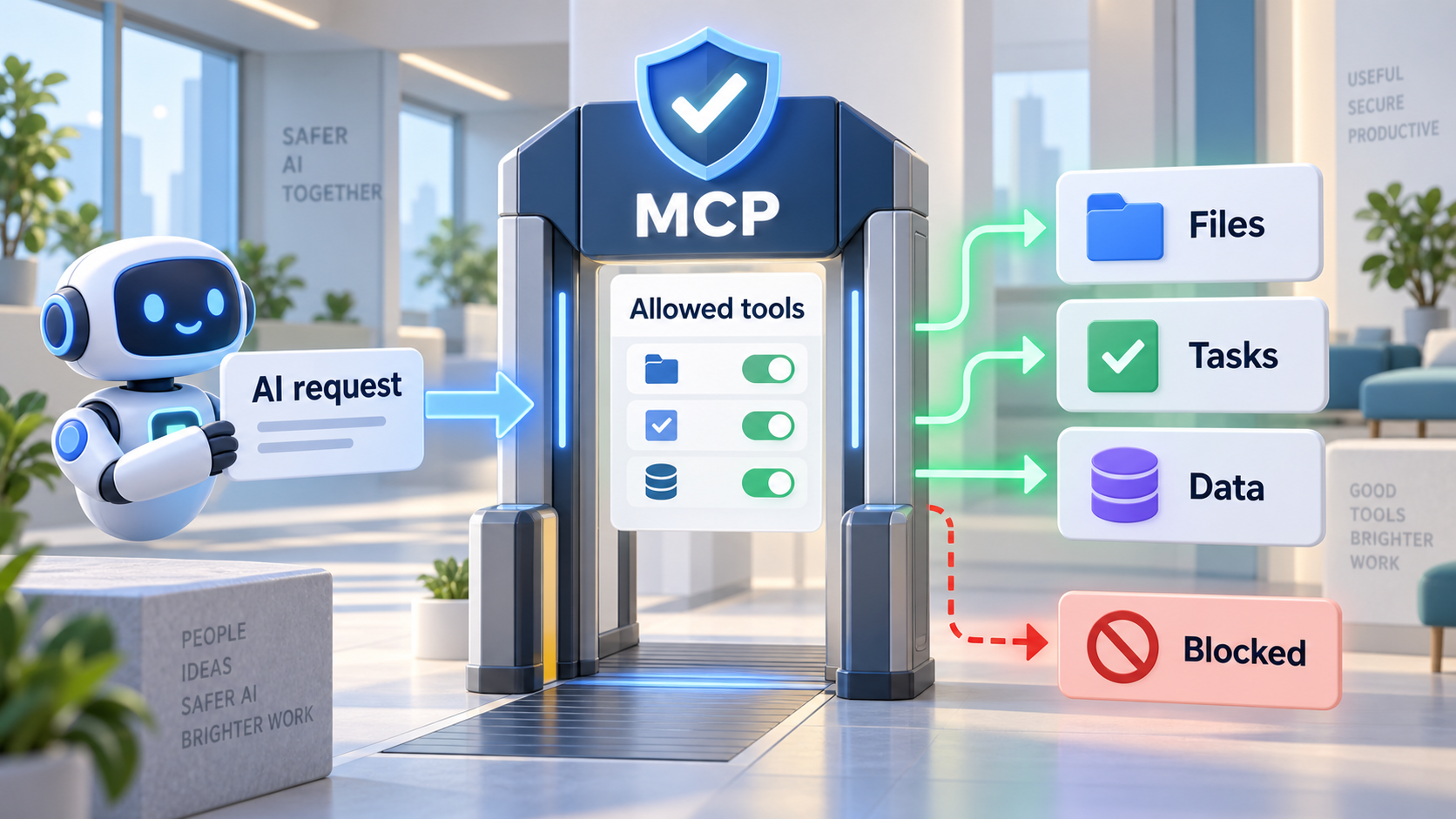 Original NordPeek editorial illustration; conceptual example, not a product screenshot
In VS Code, use MCP: Add Server with GitHub's remote URL, complete account authorisation and enable the reading tools needed for a test repository. Check an issue number and URL against GitHub before allowing changes.
VS Code and GitHub MCP documentation checked on 2026-09-12. Organisation policy may block OAuth even when the JSON configuration is valid.
I chose the topic, scope and source list, and I am responsible for publishing corrections. Automation and AI can help with research sorting, first-draft structure and repetitive formatting. Facts, prices and claims must still trace back to the sources shown on the page. This is not labelled as a hands-on product review.
Before you start
Use a current VS Code installation with access to its AI agent chat and an account allowed by your organisation to use MCP. Prepare a test repository containing a README and one synthetic issue. Installation alone does not grant access to repositories.
1. Add the remote server
Open the Command Palette with Ctrl+Shift+P on Windows or Cmd+Shift+P on macOS. Run MCP: Add Server, choose HTTP and enter the URL below. Select Workspace for this exercise and name it github.
https://api.githubcopilot.com/mcp/2. Inspect the saved JSON
A workspace uses .vscode/mcp.json. If you configure it manually, merge this server into the existing servers object. VS Code uses servers; do not paste another client's mcpServers wrapper.
{
  "servers": {
    "github": {
      "type": "http",
      "url": "https://api.githubcopilot.com/mcp/"
    }
  }
}
3. Authorise and choose reading tools
Start the server using MCP: List Servers and complete the GitHub authorisation flow. Review requested access and keep only the reading tools needed for this exercise enabled. Organisation policy may prevent the connection.
4. Verify one issue
Replace OWNER/REPO with your test repository. Compare the result with GitHub in the browser.
In OWNER/REPO, read the open issue called MCP practice. Return its number, title and URL. Summarise the request in one sentence. Do not create comments, edit files or change issue status.Failure and cleanup
If the repository is invisible, check account identity, repository access and organisation authorisation before expanding permissions. Stop or remove the server through VS Code when finished and revoke unused authorisation in GitHub. Never solve a permission failure by granting every scope without checking the cause.
AI guide scope
These guides link to official vendor pages and explain tradeoffs without inventing prices, benchmarks or availability. Check each product's current plan page before purchase or enabling computer-use permissions.
FAQ
Does this guide require a paid account?
The exercise uses synthetic data. The chosen AI client or connected service may require a plan or administrator approval; check the linked provider documentation before subscribing.
Sources and methodology
I link to official product pages and explain workflow tradeoffs without inventing prices, benchmark scores or rollout dates. Verify plan limits, permissions and regional availability on each vendor site before enabling agents or computer use.